
Table of Contents
A five-year-old laptop can still feel quick when the slowdown has a specific cause. The mistake is treating slow as one problem. A machine that takes four minutes to reach the desktop has a different issue from one that stutters with ten browser tabs open. Improving an older computer’s performance starts with finding the constraint, then spending only where it changes daily use.
Find the bottleneck before you buy anything
Press Ctrl+Shift+Esc on Windows to open Task Manager and click the Performance tab. Leave it open during a normal work session. Watch CPU, memory, disk, and GPU. A PC with 8GB of RAM may sit at 85% memory while the processor is nearly idle. Another machine can show the disk pinned at 100% for minutes after login. Those readings point to different fixes.
On a Mac, open Activity Monitor and sort by Memory or CPU. Look at memory pressure, not just the percentage. Green means the system is coping; yellow or red means it is swapping data to storage. Swapping on an old hard drive feels like wading through treacle.
If the disk is the clear problem, storage is your first upgrade. If memory is full, RAM matters more. If the CPU is pegged at 100% in every app, the processor itself is the limit, and no amount of cleanup will turn a 2012 dual-core chip into a modern one.

Cut the startup queue down to essentials
Windows loads a surprising amount at sign-in: cloud drives, printer helpers, game launchers, update agents, and chat apps. Open Task Manager’s Startup apps tab and disable anything you do not need immediately. On macOS, check System Settings > General > Login Items. You can leave password managers and backup tools; disable the rest and reboot.
A typical office desktop with 12 startup items might spend 90 seconds loading things nobody asked for. Trimming that list to four can make the desktop usable almost immediately. If a program still opens on its own, check its preferences for a ‘start with Windows’ or ‘open at login’ setting.
Replace the hard drive with an SSD
A 5400 RPM hard drive is the biggest anchor on most old computers. It has moving parts, and every small read or write costs milliseconds that add up to a sluggish desktop. A 500GB SATA SSD often costs less than a family takeaway and can cut boot time from two minutes to 25 seconds. Apps open faster, updates install quicker, and the whole machine feels newer.
Check whether your computer uses a 2.5-inch SATA drive or an M.2 slot. Some older laptops have an empty M.2 slot; many do not. Clone the existing drive with manufacturer software or do a clean install if you can back up files first. Keep the old drive in a USB enclosure as an external backup.
Do not buy an NVMe drive for a machine that cannot boot from it. Match the hardware you actually have. A modest SATA SSD beats a fancy drive that sits in a box.
Add RAM where it genuinely helps
8GB is tight for Windows 11 with a browser, spreadsheet, and messaging app open. 16GB gives an older machine breathing room. Check the motherboard or laptop specification before ordering. Laptop RAM may be soldered, partially soldered, or hidden behind the keyboard. Desktop RAM is usually easy to swap in pairs.
Match the generation and speed, and keep sticks in matched pairs where possible. Adding RAM will not fix a full disk or a failing drive. It will help when Task Manager shows memory near 90% and the system is paging to storage. On a Mac with soldered memory, skip this step and focus on storage and software cleanup instead.
Clean up heat and dust
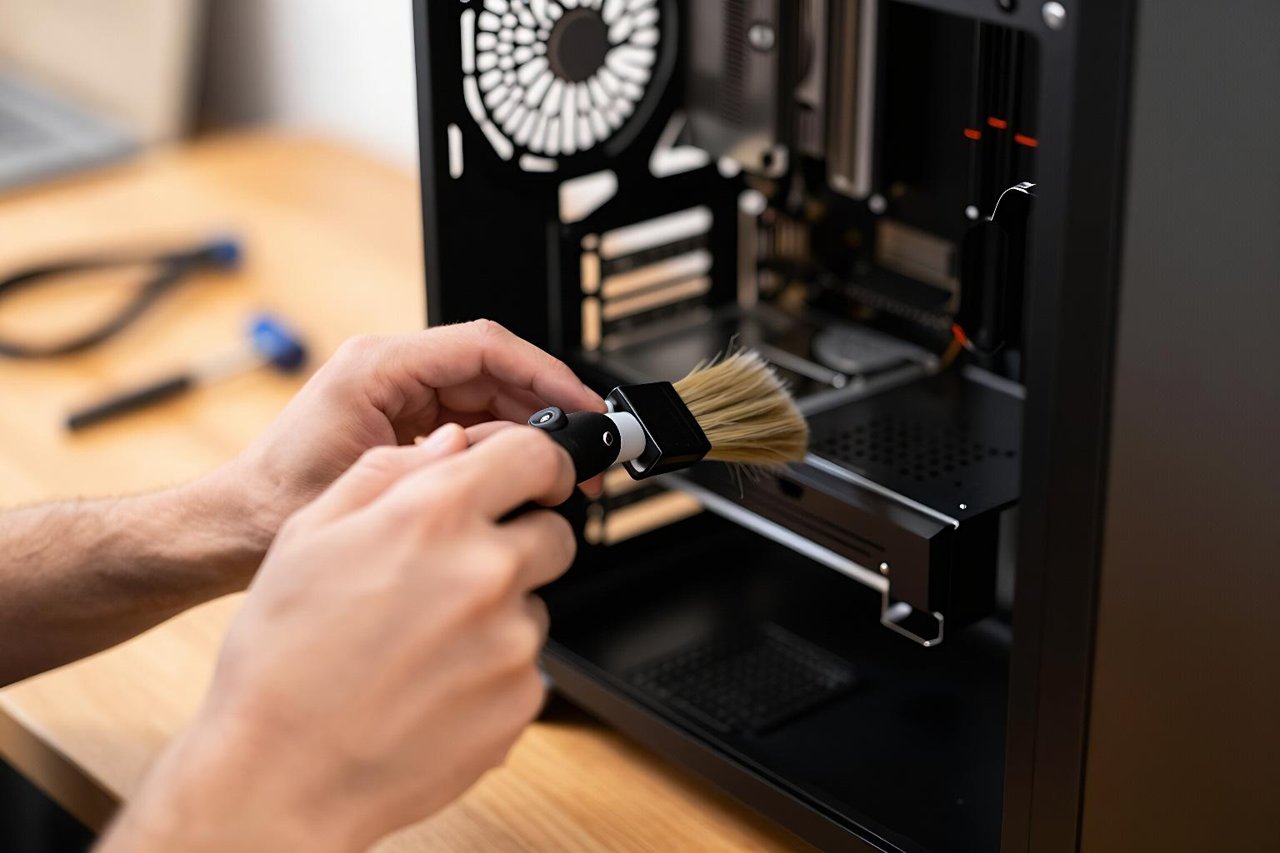
Dust blocks heatsinks and fan blades, and a hot processor slows itself down to avoid damage. That is why an old laptop runs fine for ten minutes and then crawls. Power off, unplug, and use short bursts of compressed air. Hold fan blades still with a pencil so they do not spin up. Do this outdoors or in a garage; the dust cloud is real.
Laptops on beds and cushions smother their vents. A cheap stand or a hard book can lift the rear edge and drop temperatures by several degrees. Desktop towers benefit from a clean front intake and a clear space around the case.
If the machine is five years old and the fan runs constantly, a repaste of the CPU thermal compound can help. It is fiddly on laptops and best left to a repair shop if you are not comfortable dismantling the cooling assembly.
Tame the browser and background apps
Browsers are the heaviest everyday app for most people. Twenty tabs can consume 3GB to 5GB of memory, especially with video calls, docs, and social feeds open. Close tabs you are not reading. Use the browser’s own task manager to spot an extension or tab that is eating CPU.
Review extensions once a season. A coupon tool, two ad blockers, and a screenshot add-on can each add overhead. Remove duplicates and anything you have not used in a month. Check cloud sync clients too; a photo uploader running in the background can keep the disk busy for hours after login.
Adjust operating system defaults
Windows: set power mode to Balanced, turn on Storage Sense, and remove temporary files with Disk Cleanup. Uninstall unused programs from Settings > Apps. Check privacy settings for background apps you never open. Keep the OS and graphics drivers current, but skip driver-updater utilities that add their own startup entries.
macOS: clear login items, empty the Trash, and check Storage recommendations. Reduce transparency and motion if the GPU feels strained. Keep at least 15% of the drive free; both Windows and macOS slow down when storage is nearly full because they cannot manage temporary files and virtual memory properly.
Decide when an upgrade stops making sense
An old business desktop with a standard SATA bay and accessible RAM is a great candidate for a $60 SSD and a $40 memory kit. That combination can buy two or three useful years. A thin laptop with soldered 4GB of RAM, a failing battery, and a cracked hinge is a different story. Add up the parts and compare that total with the cost of a refurbished machine.
Look for these signs that money is better spent elsewhere:
- The CPU sits at 100% during basic web browsing even after cleanup.
- RAM is soldered at 4GB or 8GB and cannot be expanded.
- The battery lasts less than an hour and replacements are scarce.
- The screen, keyboard, or hinge needs repair on top of performance parts.
If you are shopping, our look at the coolest laptops from CES 2026 shows how much battery life and efficiency have moved in recent models. That context helps you judge whether a repair is a stopgap or a waste.
The useful arithmetic is simple: upgrade cost divided by months of better use. A $100 refresh that gives you two years costs about $4 a month. A $300 repair on a machine with a dying motherboard does not. Measure the bottleneck, price the fix, and put the money where it removes the daily friction.


