
Table of Contents
Why the Inside of Your Machine Still Matters
A laptop that stutters during a video call isn’t slow in some vague, mystical sense. It’s usually out of memory, dropping clock speed because of heat, or grinding through a page file on a drive that’s 95% full. Those are three different problems with three different fixes, and telling them apart is the difference between spending £60 on more RAM and £900 on a new machine.
You don’t need to solder anything to benefit from this. Understanding the top 7 components every computer user should understand changes how you buy, how you troubleshoot, and how long you keep a machine alive. Here’s each one, with the numbers that actually matter.
1. The CPU: The Part That Decides How Fast “Fast” Is
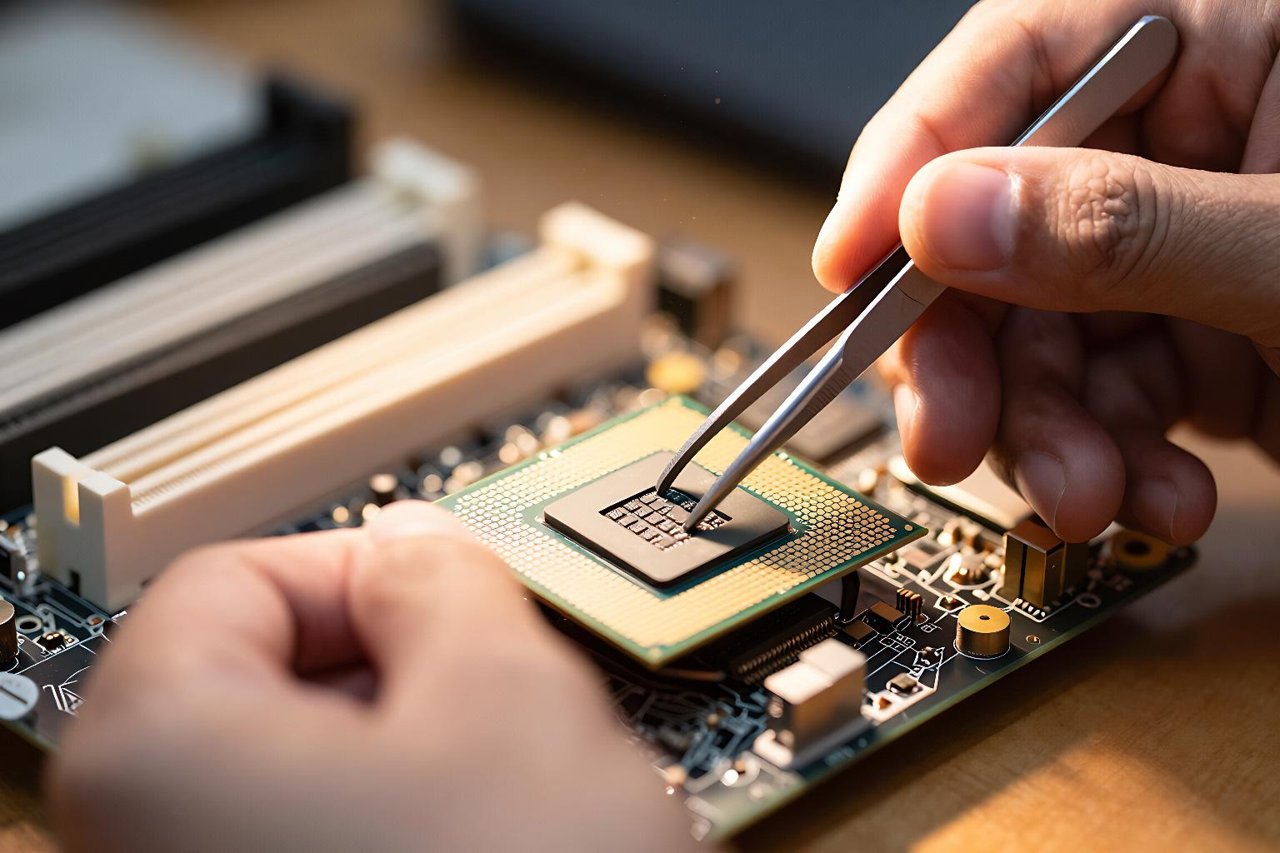
The processor executes instructions, and its clock speed (measured in gigahertz) tells you how many cycles per second it can churn through. A modern desktop chip runs somewhere between 3.5GHz and 5.5GHz, with brief boosts higher when thermal headroom allows.
Core count gets all the marketing attention, but it matters less than people assume for everyday work. Word, Slack, and a browser mostly care about single-core speed and cache size. Where extra cores genuinely pay off is sustained parallel work: exporting a 4K video, compiling a large codebase, batch-processing 400 RAW photos.

Watching a CPU scheduler juggle hundreds of threads is also a decent primer for how AI agents sequence their own work, a topic that a roadmap for agentic programming digs into at length. Same problem, different layer.
2. RAM: Short-Term Memory, and Usually the Cheapest Upgrade Going
RAM holds whatever is actively open. Close the lid and it’s gone; that’s the whole point. The trouble starts when demand exceeds supply, because your operating system then shuffles data to the drive instead — a process called swapping that makes everything feel like it’s moving through treacle.
Rough numbers to calibrate against: each browser tab costs 50–150MB, Slack can sit at 400MB to 1GB, and Photoshop will happily claim 2–8GB. In 2025, 8GB is the bare floor, 16GB is comfortable, and 32GB makes sense for video editing, virtual machines, or CAD work.
Two smaller sticks usually beat one large one, since dual-channel memory roughly doubles available bandwidth. On laptops, check whether the RAM is soldered before you buy — plenty of thin machines have no upgrade path at all.
3. Storage: Where the “Slow Computer” Feeling Usually Lives
A solid-state drive boots Windows in about 15 seconds. A 5,400rpm mechanical drive takes 90 seconds or more, and then keeps you waiting every time you open a folder. Swapping an old laptop’s hard drive for an SSD is still the single most dramatic upgrade you can perform on a ten-year-old machine.
Speed tiers matter less than the marketing suggests. NVMe drives hit 3,500–7,000MB/s versus roughly 550MB/s for SATA, but everyday snappiness depends far more on random read performance than on headline sequential figures.
Capacity disappears faster than expected. An hour of 4K footage can eat 50GB, and in medicine a single CT or MRI study often runs 200–600MB, which is why picture archives balloon into the terabytes so quickly — a guide to medical imaging gives a sense of just how much data one scan produces. Keep 15–20% of any drive free so it has room to manage itself, and back up anything you’d mourn.
4. The GPU: Not Just for Games
Graphics processors handle the maths behind everything you see, and they’re built very differently from a CPU: thousands of small cores optimised for doing the same operation to lots of data at once. Integrated graphics are fine for spreadsheets and streaming. A discrete card earns its place for 3D work, video effects, and local AI.
Video memory (VRAM) is the spec to watch. Running a 7-billion-parameter language model locally needs roughly 4–6GB once quantised, and that demand climbs steeply with multimodal systems that process images and audio alongside text. The training lessons covered in the Phi-4-reasoning-vision write-up explain why memory budgets, not raw speed, tend to be the real constraint.
5. The Motherboard: The Wiring That Decides Your Upgrade Path
Nothing on a motherboard makes your computer faster. What it does is determine what you’re allowed to change later: the CPU socket, the chipset, the memory generation, the number of M.2 slots, and the PCIe lanes feeding your graphics card.
This is where cheap builds quietly fail. Spend £40 less on a board and you may lose a second drive slot or get a chipset that caps memory speed. On laptops, the equivalent is the port selection. A USB-C port that supports DisplayPort alt mode means one cable for power, video, and a hub; one that doesn’t means you’re buying a dock.
Standards are what make any of this work reliably, and interoperability is now a live argument in software too — what MCP and Claude Skills teach us about open source for AI covers the same tension between open connectors and locked-in ecosystems.
6. The Power Supply: The Component That Can Take Everything Else With It
A power supply converts mains AC into the steady DC your components need. It’s also the one part that, when it fails badly, can destroy the motherboard, drives, and graphics card in a single pop.
Buy for headroom, not for the number on the box. A system that draws 350 watts under load is well served by a quality 550W unit, because efficiency peaks around 50% load and capacitors age. Look for an 80 Plus Bronze rating at minimum and a single 12V rail from a brand that publishes protection specs.
Laptops have their own version of this. A 65W USB-C charger will run a thin ultrabook fine, but pair it with a machine that wants 100W and the battery will slowly drain during heavy work even while plugged in.
7. Cooling: Why Your Fast Parts Never Run at Full Speed
Every processor has a thermal limit, usually around 95–100°C. Cross it and the chip protects itself by dropping clock speed — sometimes from 4.7GHz down to 2.9GHz within a few seconds. That’s why a three-year-old laptop feels sluggish on a hot afternoon while benchmarks from the day you bought it looked fine.
Dust is the usual culprit. A clogged heatsink fin stack can cut airflow by half, and a laptop running on a duvet blocks its only intake. Thermal paste also dries out; repasting a desktop CPU every three to five years is a twenty-minute job that restores most of the lost performance.
Keep an eye on temperatures with something like HWiNFO or the built-in monitoring in your BIOS, and clean the vents every six months. A £10 can of compressed air does more for most ageing machines than any “optimiser” software ever will.


