
Table of Contents
A desktop CPU the size of a postage stamp can dissipate 150 watts or more. A stovetop hotplate covering the same area would be putting out a fraction of that. The mismatch explains a lot about why the inside of a PC looks so much more complicated than the job seems to require.
Strip away the branding and every cooling system does three things: pull heat out of a component, carry it somewhere less crowded, and dump it into the room. What changes is the engineering used at each step.
Why computers get hot in the first place
Almost every watt a chip draws ends up as heat. Transistors switch billions of times a second, and each switch costs a tiny amount of energy that leaves as thermal energy rather than useful work. A 125-watt processor running a game is effectively a 125-watt heater with a maths problem attached.
It isn’t only the CPU. Graphics cards can pull 300 watts or more, voltage regulators on the motherboard warm up under load, and NVMe drives get genuinely uncomfortable to touch during large file transfers. If you want a refresher on which parts do what, our rundown of the key components every computer user should understand covers the main players.

Silicon has a ceiling. Most modern CPUs are rated to around 100°C at the hottest point of the die, and GPUs sit close to that. Push past it and the chip protects itself by dropping clock speed, a behaviour called thermal throttling. A gaming laptop that feels fast for ten minutes and sluggish afterwards is usually throttling, not broken.
Air cooling: heatsink, heat pipes, fan
Air coolers are the default for good reason. They are cheap, they have no pump to fail, and a decent tower cooler handles most consumer chips without drama.
The heatsink
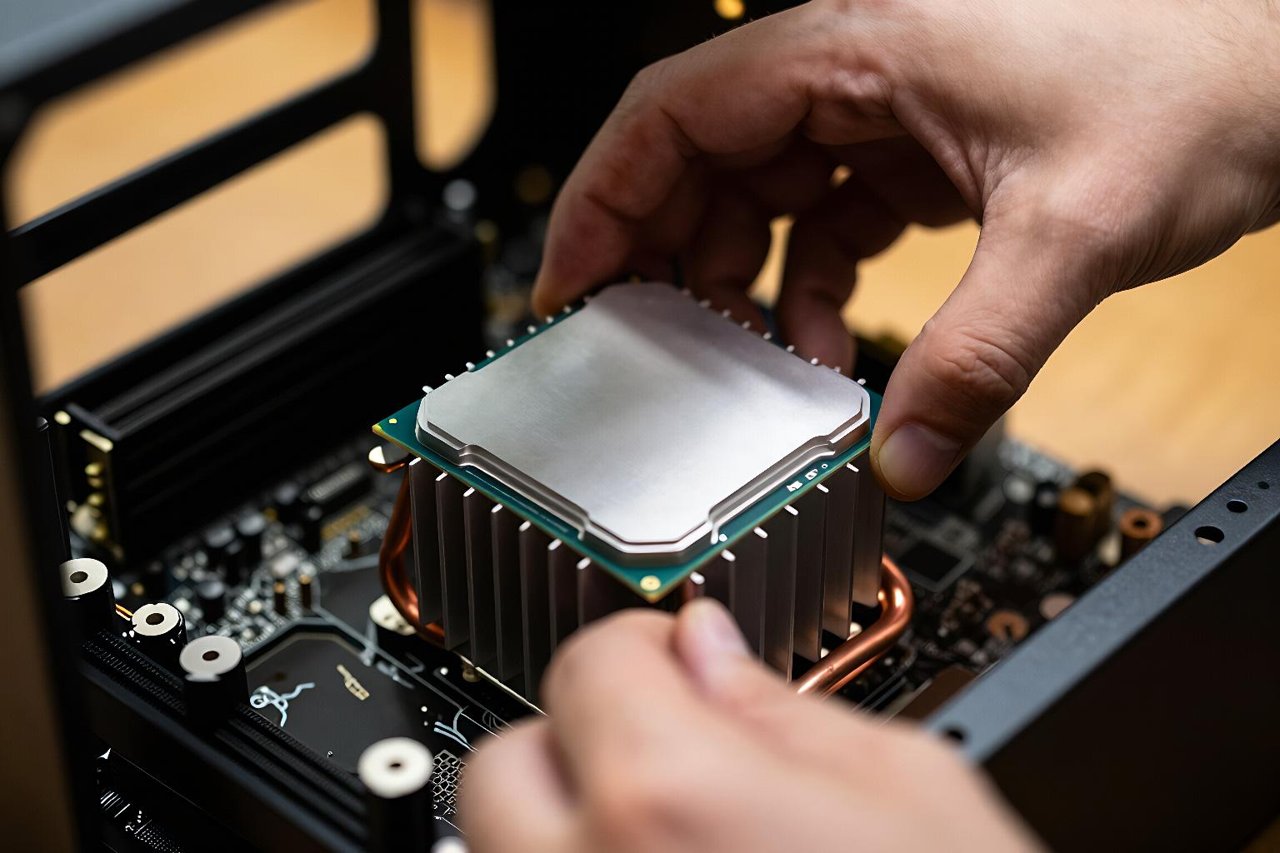
A block of metal sits on the processor, separated by a thin layer of thermal paste. Aluminium fins fan out from that block to create surface area. More surface area means more contact with moving air, and more contact means heat leaves faster. That’s the entire principle behind the towering fin stacks you see on desktop coolers.
Heat pipes do the real work
Copper conducts heat well, around 400 W/m·K, but that isn’t enough to move heat quickly across the length of a large cooler. So manufacturers use sealed copper tubes containing a small amount of liquid, usually water, under partial vacuum.
Heat at the base boils the liquid. The vapour races to the cooler end of the tube, condenses against the fins, and releases its latent heat. A wick structure or gravity returns the liquid to the base and the cycle repeats. A good heat pipe behaves as if it has a thermal conductivity in the thousands, which is why a $40 air cooler can outperform a solid copper block many times its price.
The fan
The fan’s only job is to keep supplying cooler room air to the fins. Size matters more than speed: a 140mm fan shifting the same volume of air as a 92mm one can spin far slower and stay quiet.
- Static pressure fans push air through dense fin stacks and radiator cores.
- Airflow fans move volume freely and suit open case ventilation.
- PWM control on a 4-pin header lets the motherboard set speed precisely instead of just high or low.
- Bearing type decides noise and lifespan: fluid dynamic bearings usually outlast cheap sleeve bearings.
Liquid cooling, from all-in-ones to custom loops
Water carries far more heat per litre than air and can be pumped to a radiator at the edge of the case, where a large fan area disperses it. That’s the pitch, and it holds up, though the gains are smaller than marketing suggests for everyday workloads.
All-in-one coolers
An AIO arrives sealed: pump and cold plate on the CPU, two tubes, a radiator with fans. A 240mm unit generally matches a good air cooler; 360mm models pull ahead on high-wattage chips. The trade-off is a pump that will eventually wear out, plus a small chance of leakage that manufacturers warranty but never entirely eliminate.
Custom loops and the maintenance reality
Enthusiasts build loops with a reservoir, pump, CPU block, GPU block and as many radiators as the case accepts. Temperatures improve, noise drops, and the build looks impressive. It also needs draining, flushing and occasional part replacement. Clear coolants can cloud; mixed metals can corrode. This is a hobby, not a maintenance-free upgrade.
Thermal paste and mounting pressure
Metal surfaces look flat but are microscopically rough. Air trapped in those gaps is a terrible conductor, so paste fills them. A pea-sized amount is plenty. Too much simply squeezes out at the edges; too little leaves bare patches.
Mounting pressure matters as much as the paste. An unevenly tightened cooler produces hot spots that no fan curve can fix. Repasting a five-year-old laptop often drops temperatures by 10°C or more, because original paste dries and pumps out over time.
Airflow: the part everyone forgets
A great cooler in a sealed box is a radiator with no wind. Cases need intake and exhaust paths, and the layout of the case itself shapes how air moves. Our walkthrough of what’s actually inside the box shows where drives, power supplies and cable runs typically sit and why they block airflow.
Positive pressure, meaning more intake than exhaust, pushes dust out through gaps instead of pulling it in through unfiltered seams. Two front intakes and one rear exhaust is a sensible baseline for most builds. Cables bunched in front of the intake can cost several degrees.
Passive and exotic cooling
Fanless systems use huge fin arrays, or the case itself as a heatsink, and rely on convection alone. They suit media boxes and industrial PCs, and they’re silent by definition.
Beyond that, the approaches get specialised: vapour chambers flattening heat spread across thin laptops, immersion tanks submerging servers in non-conductive fluid, Peltier plates actively chilling a cold plate at the cost of extra heat elsewhere. Research machines go further still, and the engineering behind new approaches to cooling quantum computers involves refrigeration stages that reach temperatures colder than deep space.
Who decides how fast the fans spin
Sensors scattered across the board report temperatures dozens of times a second. Firmware and software compare those readings against a fan curve, a simple map from temperature to fan speed. Most systems idle around 30 to 40 percent and ramp sharply past 70°C.
You can usually edit that curve in the BIOS or with vendor software. Flattening the early part of the ramp makes a machine quieter at light load with almost no thermal penalty. Setting fans to a fixed high speed all day just adds noise and dust intake.
Cooling at data-centre scale
The same physics applies to racks drawing 50 kilowatts, but the numbers force different solutions. Cold-aisle containment, rear-door heat exchangers, direct-to-chip liquid plates and, increasingly, full immersion cooling are standard in high-density facilities. Machines doing high performance computing work run hot enough that cooling design drives the building layout, not the other way round.
The people side is a constraint too. Heat exchangers, pumps and coolant loops need technicians who understand them, and AI data centres are already struggling to hire enough skilled workers to keep those systems maintained. Cooling has quietly become a staffing problem as much as an engineering one.
For a home build, the practical takeaway is modest. Get a cooler rated well above your chip’s wattage, apply paste properly, give the case room to breathe, and set a fan curve you can live with. That combination handles nearly everything short of a workstation running flat out for days.


