
Table of Contents
A laptop on a café table looks like one object. Open it up and it turns into a small city: a processor firing billions of instructions a second, memory chips holding data in the dark, a drive that keeps a photo from 2011 until you ask for it again. Computers and computer hardware are really two different stories. One is logic, the other is the physical stuff that carries the logic out. Most buying regrets, repair bills and mystery slowdowns live in the second story.
What Actually Counts as Computer Hardware
Hardware is everything you can physically touch. Software is the set of instructions that makes it do something. The line is less obvious than it sounds: the firmware sitting on a chip inside your keyboard is software, but you can’t install it anywhere else, and the keyboard stops working properly without it.
Inside a typical desktop or laptop you’ll find the same handful of parts, whatever the brand sticker says:
- Processor (CPU): executes instructions. A modern desktop chip carries anywhere from 6 to 24 cores, each running several threads at once.
- Memory (RAM): fast, temporary workspace. Cut the power and it forgets everything.
- Storage (SSD or HDD): slow, permanent. Survives being switched off.
- Motherboard: wires everything together and decides what you can add later.
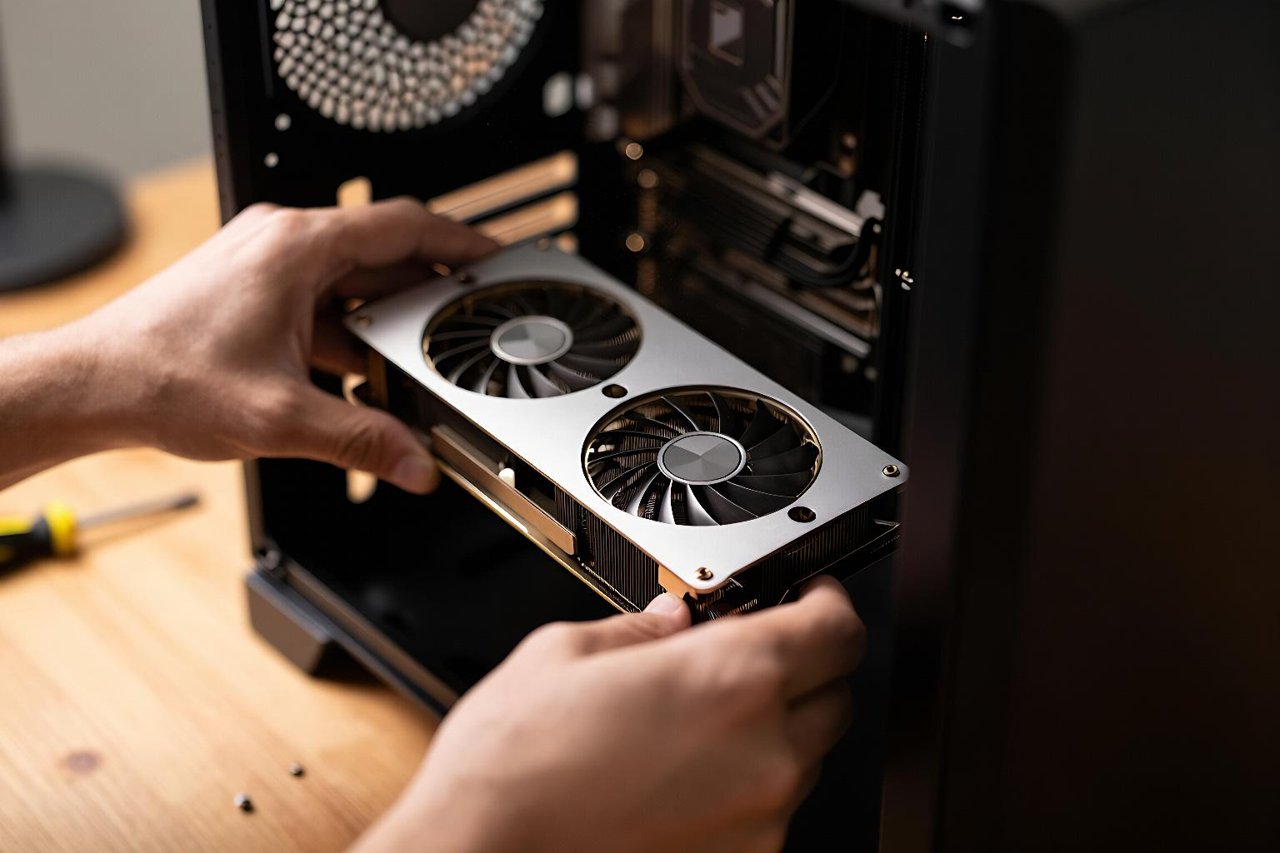
- Graphics card (GPU): built into the CPU on most laptops, a separate card on gaming and creative machines.
- Power supply and cooling: the boring parts that decide whether the interesting parts run at full speed or throttle themselves.
That last bullet gets ignored constantly. A CPU rated for 5.4 GHz will hold it for about ninety seconds in a thin laptop before the fan gives up and the chip drops to 3.2 GHz. The spec sheet never mentions it.

How the Parts Talk to Each Other
The CPU only works as fast as its inputs arrive
A fast processor fed by slow memory spends a lot of time waiting. That’s why a cheap laptop with a decent chip and 8GB of single-channel RAM feels worse day to day than a slightly older machine with 16GB in dual-channel. Thirty browser tabs, a video call and a spreadsheet will eat 10GB without trying.
RAM and storage are not the same job
People still confuse the two. RAM costs roughly $3 per gigabyte. Storage costs about $0.06 per gigabyte. One is a workbench, the other is a warehouse. Adding RAM makes a sluggish machine responsive. Adding storage makes a full machine roomy. Neither fixes the other problem.
The storage upgrade is usually the bigger visible win. A SATA SSD moves data at around 550 MB/s. An NVMe drive in a PCIe 4.0 slot reaches 5,000 MB/s or more. Boot time drops from forty seconds on an old spinning disk to under ten, and you notice that gap every single morning.
The motherboard sets your ceiling
It’s the least exciting purchase and the one that limits you most. Two RAM slots, no spare M.2 socket and a 300-watt power supply means your upgrade path ends the day you buy the machine. Spend fifteen minutes checking slot count and power headroom before you commit.
Specs That Matter and Specs That Don’t
Marketing numbers are chosen to look big. A few deserve skepticism:
- “Up to 20 hours battery life.” Measured at low brightness with Wi-Fi off and one document open. Halve it.
- Core counts without a model number. Twelve slow cores can lose to eight fast ones in most real workloads.
- 4K on a 14-inch screen. Hard to tell apart from 2.5K at that size, and it drains the battery faster.
- Gigabytes of “turbo” storage. Often a small fast cache in front of a slower drive. Look for the words QLC and a sustained write figure.
What does matter: RAM soldered or socketed, drive type, port selection, and whether the screen is matte or glossy. Those affect you every day. The rest is mostly noise.
Desktop, Laptop, or Nothing Local at All
The old choice was between a tower you could upgrade and a laptop you couldn’t. There’s now a third option. A cloud PC runs your desktop operating system on hardware in a data centre and streams the screen to whatever cheap device you already own. The laptop stays cool and light, the heavy lifting happens somewhere with industrial air conditioning, and the machine gets faster when the provider upgrades it rather than when you do.
That shift belongs to a bigger story about cloud computing, where processing power became something you rent by the hour instead of something you plug into the wall. It isn’t free of trade-offs. A bad connection turns a fast machine into a slideshow, and you don’t own the hardware at the end of the contract.
Where Hardware Runs Into Physical Limits
Silicon can only get so small before electrons start tunnelling through gates that are meant to be closed. Clock speeds stalled around 5 GHz more than fifteen years ago and the industry went sideways into more cores instead. The race for the fastest supercomputer is now as much about power delivery and cooling as chip design, because a machine drawing 20 megawatts has to get rid of 20 megawatts of heat.
It’s worth remembering how short that arc has been. The last fifty years of computing took us from room-sized machines with less memory than a single photo to phones that comfortably outperform them. Nothing about that curve looks finished.
Fixing the Part Hardware Can’t Fix
Buying faster components is the easy answer to a slow computer and often the wrong one. A machine with a modern CPU and a bloated operating system still stutters. Dependable systems need careful software as much as good silicon, a point researchers like Peter G. Neumann spent entire careers making. Before you spend money, check what’s actually running: startup apps, browser extensions, and whether the drive is 96% full. That last one alone can halve SSD write speed, because the controller has nowhere left to shuffle data.
Five Checks Before You Pay
- Can I open it? Find a service manual or teardown video for that exact model. If the RAM is soldered, buy the maximum you’ll need on day one.
- What’s the sustained performance? Search for thermal throttling tests, not launch-day reviews.
- How many ports, and which kind? Two USB-C ports on a laptop means a dock in your future.
- Is the power supply sized for upgrades? A 500W unit leaves room for a mid-range graphics card. A 300W unit doesn’t.
- What’s the warranty path? Business-grade machines often ship with three years of on-site repair. Consumer models usually get one year and a postage label.
Get the motherboard, the RAM configuration and the drive type right, and the rest of the machine will stay useful long after the sticker price has been forgotten. Everything else is a detail you can change, replace or live without.


