
Table of Contents
A four-year-old desktop can feel sluggish for reasons that have nothing to do with the CPU. Windows fills up with background tasks, games ask for more video memory, and a 5400 rpm hard drive turns every launch into a coffee break. The right parts swap can add years of useful life for a fraction of a new machine. These are the top 7 computer upgrades that can improve performance in ways you will actually notice, ranked by impact and practicality rather than benchmark bragging rights.
1. More RAM, especially if you are still on 8GB
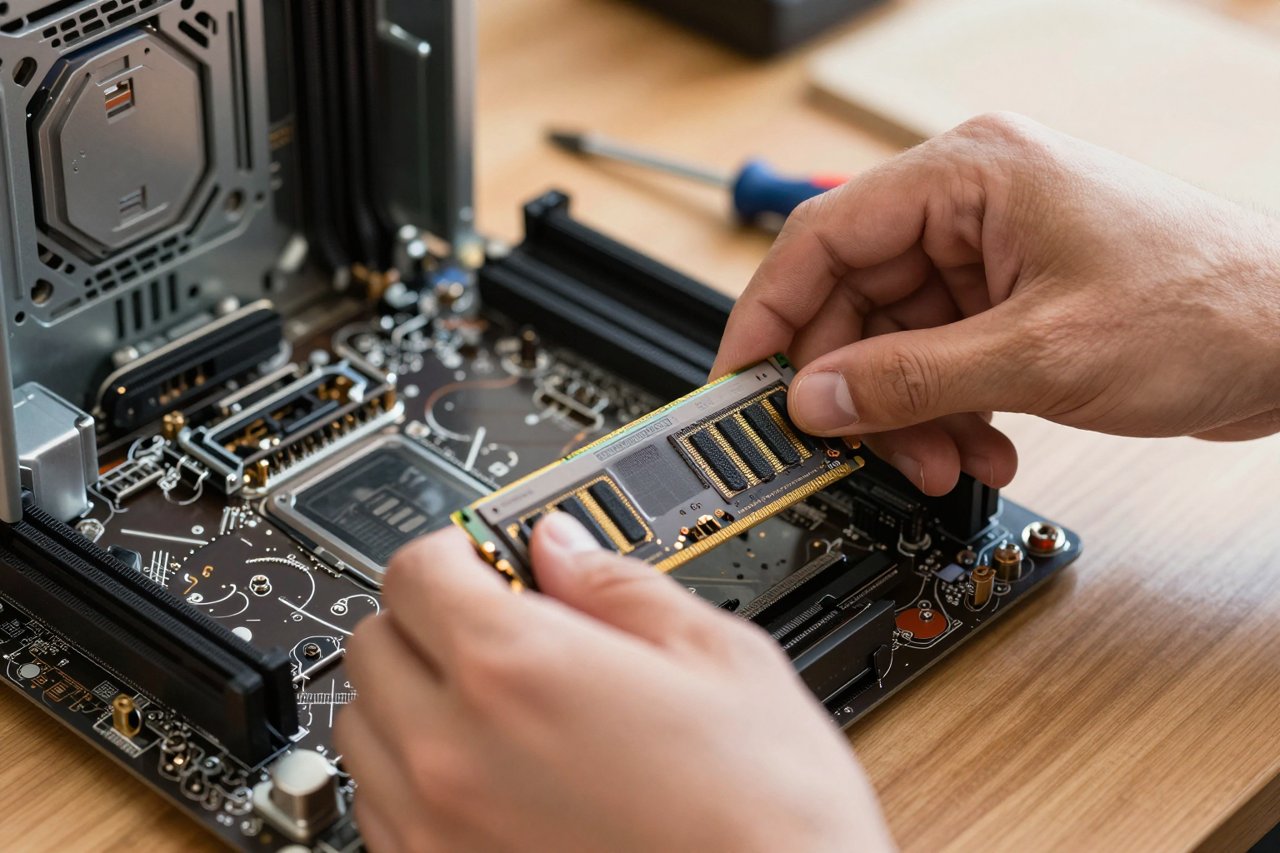
Memory is the cheapest way to fix a PC that stutters when you open a dozen browser tabs, Slack, Spotify, and a game launcher at the same time. Windows will happily use 6GB to 8GB before you open anything serious. Once it runs out, it starts swapping to the drive, and the whole system feels sticky.
For most people, 16GB is the sensible floor in 2026. Gamers and anyone editing photos should look at 32GB. Video editors, 3D artists, and people running virtual machines can justify 64GB, but only after checking the motherboard’s limit and free slots.
What to check before buying
- DDR generation: DDR4 and DDR5 are not interchangeable.
- Slot count: two 8GB sticks usually beat one 16GB stick because dual-channel memory feeds the CPU faster.
- Laptop access: some thin laptops have soldered RAM, so check before you order a kit.
If you are patient, memory prices swing around sales events. Our roundup of early Amazon Prime Day deals on tested products is a decent way to gauge when a 32GB kit is actually a bargain rather than a markup with a red badge.

2. An NVMe SSD for Windows and everyday apps
A SATA SSD was a huge leap over a hard drive. An NVMe drive is another step up, though the gap in everyday use is smaller than the spec sheet suggests. A decent PCIe 3.0 or 4.0 NVMe drive can move data at 3,500MB/s to 7,000MB/s; a SATA SSD tops out around 550MB/s. Boot times, game loads, and big file copies all benefit, and the system feels crisp because Windows is not waiting on a mechanical arm.
Buy at least 1TB if you can. A 500GB drive fills up fast once Windows, a few games, and a photo library move in. Keep the old drive as extra storage or put it in an external enclosure. Cloning software is usually included with the new drive; if not, a clean Windows install is still the most reliable route.
3. A graphics card upgrade delivers the biggest gaming jump
For games, the GPU matters more than any other part. Moving from a GTX 1060 to a modern mid-range card can double frame rates at 1080p, and it unlocks settings like ray tracing that older hardware simply cannot handle. Creative apps benefit too: Premiere Pro, Blender, and DaVinci Resolve lean on GPU acceleration for exports and previews.
The catch is balance. A $600 graphics card paired with a 2016 quad-core CPU will spend half its time waiting for the processor. Check power supply connectors, case clearance, and whether the card needs a PCIe 4.0 or 5.0 slot. Most modern cards still work fine in a PCIe 3.0 slot, just with slightly less bandwidth.
Laptop graphics are mostly fixed at purchase. If you are weighing a new machine instead, the coolest laptops from CES 2026 show how much power is now packed into sealed designs, but they also show how little you can change later.
4. A CPU upgrade, if your motherboard still supports it
This is the upgrade with the most caveats. A new CPU can transform compile times, simulation, and high-refresh gaming, but only if the socket and chipset cooperate. Intel changes sockets every couple of generations; AMD’s AM4 platform lasted long enough that a Ryzen 5000 chip can be a massive step up from a first-gen Ryzen 1000. Check the motherboard vendor’s CPU support list and BIOS version before buying.
On a desktop, a used CPU from the same generation can be excellent value. On a laptop, assume the processor is soldered. The Dell XPS 16 review underlines the point: the review unit is fast, but the upgrade path is limited to storage and, sometimes, memory.
If the motherboard does not support a worthwhile CPU, put the money toward a platform upgrade instead. A new CPU, board, and RAM together often cost less than a disappointing stopgap.
5. Better cooling stops the parts you own from throttling
A PC that runs at 95°C will not hold its boost clocks. Dust-clogged heatsinks, a stock cooler on a hot CPU, and one exhaust fan in a closed case are common causes of lost performance. Cleaning alone can drop temperatures by 5°C to 10°C. Replacing thermal paste after three or four years is cheap maintenance, though it is easy to overdo it.
For air cooling, a tower cooler with a 120mm or 140mm fan handles most mid-range CPUs quietly. High-end chips may need a 240mm or 360mm liquid cooler, but a good air cooler is often more reliable and costs less. Add intake fans if the case supports them; positive pressure helps keep dust out of the wrong places.
Laptop cooling is harder. A cooling pad can help a little, and undervolting the CPU often does more. Neither will turn a thin laptop into a desktop, but they can stop frame rates from collapsing after 20 minutes.
6. A power supply that can actually feed the upgrade
A power supply does not make your PC faster on its own. It does, however, prevent random shutdowns, coil whine, and the kind of instability that looks like a software bug. If you are adding a power-hungry graphics card, check the recommended wattage and the number of PCIe cables. A 650W unit is fine for many mid-range builds; an RTX 4080 or similar card may want 850W or more.
Look for 80 Plus Bronze or Gold efficiency, a reputable brand, and at least a five-year warranty. Modular cables make cable management easier but do not improve performance. Do not cheap out on a no-name unit that claims 1000W for $40. It will not deliver that power cleanly, and it may take other components with it when it fails.
7. A high-refresh monitor changes how fast the PC feels
Technically this is a peripheral, not an internal upgrade. In practice, a 144Hz or 165Hz monitor can make a fast PC feel far smoother than a 60Hz panel, especially in games, scrolling, and window dragging. The jump from 60Hz to 144Hz is obvious within seconds. The jump from 144Hz to 240Hz is real but much smaller.
Match the monitor to the GPU. A 4K 144Hz screen is wasted on a card that struggles at 1080p. For 1440p gaming, a 27-inch 165Hz IPS or OLED panel is a sweet spot. Check that the cable supports the resolution and refresh rate: DisplayPort 1.4 or HDMI 2.1 for high refresh at higher resolutions.
If you mostly write documents and browse, a high-refresh monitor is a nice-to-have. If you game or scroll through long pages all day, it is one of the most noticeable upgrades you can buy.
How to choose the upgrade that will help most
Before buying anything, open Task Manager during a typical workload. If memory sits above 80%, buy RAM. If the disk active time is pinned at 100% with a hard drive, buy an SSD. If the GPU is at 99% while gaming, buy a graphics card. If the CPU is at 99% and the GPU is waiting, a CPU upgrade may help. If temperatures hit the thermal limit and clocks drop, fix cooling first.
A sensible order for most aging desktops is RAM, SSD, cooling, GPU, PSU, CPU, then monitor. The exact order depends on what you do. A spreadsheet user does not need a new GPU. A competitive gamer should prioritize frame rate and a high-refresh panel over more storage. A video editor should sort out RAM and cooling before chasing a flagship graphics card.
Measure before and after. Run a game benchmark, time a file export, or just watch Task Manager for a few minutes. The numbers will tell you whether the upgrade did what you hoped, and they will stop you from spending money on a part that was never the bottleneck.


